Datenpunkte im Akkordeon-Menü
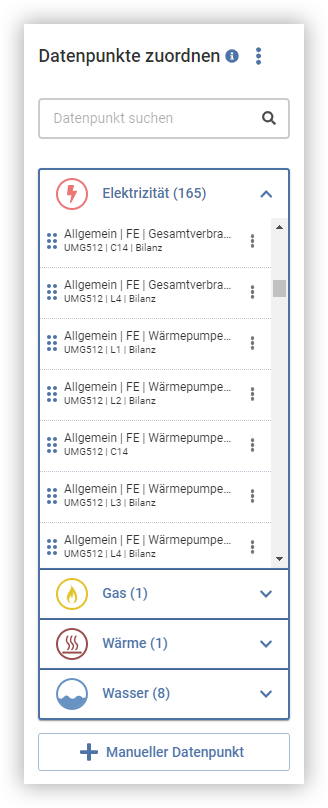
Messgeräte, die lokal im Cloud Connector eingebunden und überwacht werden, erscheinen automatisch im Hierarchieeditor im Akkordeon-Menü und können direkt zugeordnet werden.
Zu jedem Messgerät werden im entsprechenden Menüeintrag folgende Informationen angezeigt:
- Messgeräte Bezeichnung
- Gerätetyp
- Phase (L1, L2, L3, L4 oder die jeweilige Summe der Phasen)
- Seriennummer (über Mouseover)
- Falls die Bilanz der Wirkarbeit übertragen wird, wird dies angezeigt
Beachten Sie, dass die Daten der Messgeräte nur in die GridVis Cloud übertragen werden. Eine Konfiguration der Zähler in der GridVis Cloud ist nicht möglich. Verwenden Sie zur Konfiguration der Messgeräte die GridVis Desktop.
Hinweis
Messgeräte, die nicht automatisch von GridVis Cloud erkannt und ausgelesen werden, können über die Schaltfläche Manueller Datenpunkt hinzugefügt werden. Diese werden anschließend wie automatisch erkannte Datenpunkte verwendet. Beachten Sie jedoch, dass bei manuellen Datenpunkten die Daten manuell gepflegt werden müssen.
Hinweis
In der Datenpunktliste können nur Werte angezeigt werden, die auch über den Cloud Connector übertragen werden.
Voraussetzung für die Übertragung der Werte von Janitza-Messgeräten mit Speicher ist eine korrekte und vollständige Aufzeichnungskonfiguration. Eine Beschreibung der notwendigen Aufzeichnungskonfiguration finden Sie unter Konfiguration von Janitza-Messgeräten.
Datenpunkte zuordnen
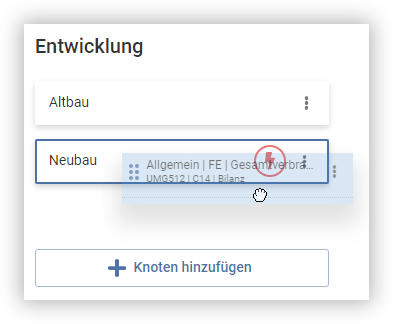
Die Datenpunkte der Messgeräte aus dem Akkordeon-Menü können per Drag-&-Drop den erstellten Hierarchieknoten zugeordnet werden:
- Suchen Sie den entsprechenden Datenpunkt in der Liste im Akkordeon-Menü, klicken Sie ihn an und halten Sie die linke Maustaste gedrückt.
- Ziehen Sie den Datenpunkt mit gehaltener Maustaste in die zuvor erstellte Hierarchie.
- Platzieren Sie den Datenpunkt auf dem Hierarchieknoten, dem Sie den Datenpunkt zuweisen möchten.
- Lassen Sie die linke Maustaste los, sodass der Datenpunkt dem ausgewählten Hierarchieknoten zugewiesen wird. Es erscheint ein Symbol mit dem entsprechenden Medium des Datenpunkts in der Zeile des ausgewählten Hierarchieknotens.
Sie können die korrekte Zuordnung prüfen, indem Sie den Mauszeiger auf dem entsprechenden Medien-Symbol an einem Hierarchieknoten platzieren. Die Bezeichnung des zugeordneten Messgeräts, sowie dessen Zusatzinformationen, werden in einem Tooltip angezeigt.
Hinweis
Pro Medium kann einem Hierarchieknoten nur ein Datenpunkt zugeordnet werden.
Hinweise zu Datenpunkten
Im Akkordeon-Menü wird ein Hinweissymbol zu den Datenpunkten angezeigt, wenn diese ein Problem aufweisen.
Dieses Symbol erscheint, wenn die letzten in der GridVis Cloud vorhandenen Messwerte der Messgeräte älter als 1 Stunde sind. In diesem Fall sind die Werte nicht aktuell und es liegt möglicherweise ein Kommunikationsproblem vor.
Überprüfen Sie die Verbindung zwischen Cloud Connector und Messgerät(en) über das integrierte Webinterface des Cloud Connectors.

Datenpunkte entfernen
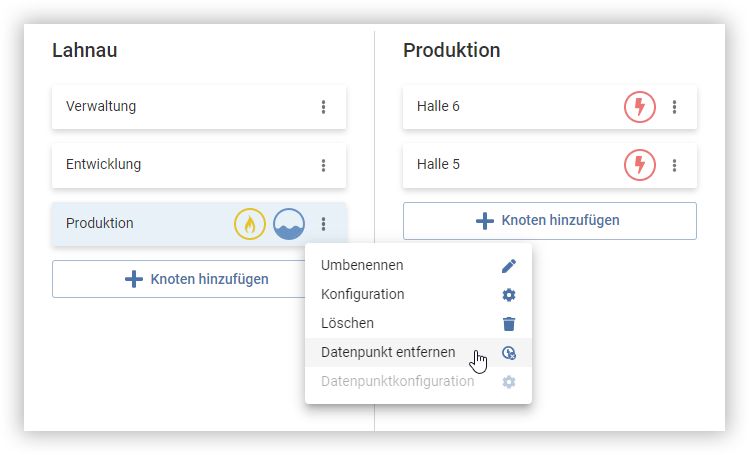
Datenpunkte, die einem Hierarchieknoten zugeordnet sind, können aus dieser Zuordnung entfernt und anschließend neu zugeordnet werden. Navigieren Sie im Hierarchieeditor zu dem entsprechenden Hierarchieknoten, von dem Sie einen zugeordneten Datenpunkt entfernen möchten.
- Navigieren Sie im Hierarchieeditor zum jeweiligen Knoten.
- Klicken Sie auf das 3-Punkt-Menü des Knotens.
- Wählen Sie den Aktionspunkt Datenpunkt entfernen aus.
- Wählen Sie die Datenpunkte aus, die Sie entfernen wollen.
- Klicken Sie auf den Button Entfernen.
Manuelle Datenpunkte umbenennen und entfernen
Datenpunkte die manuell hinzugefügt wurden können im Gegensatz zu automatisch erkannten Datenpunkten auch umbenannt und entfernt werden. Gehen Sie wie folgt vor um einen manuellen Datenpunkt zu entfernen:
- Suchen Sie den entsprechenden manuellen Datenpunkt in der Liste im Akkordeon-Menü.
- Klicken Sie auf das 3-Punkt-Menü des manuellen Datenpunktes.
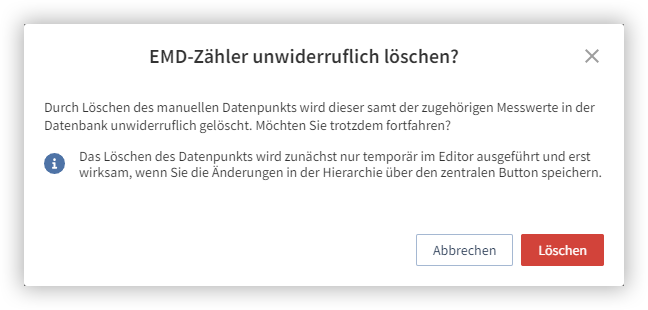
- Wählen Sie den Aktionspunkt Löschen aus.
- Es öffnet sich ein Dialog zur Bestätigung, ob der manuelle Datenpunkt wirklich gelöscht werden soll.
- Bestätigen Sie das Löschen, indem Sie auf die Schaltfläche Löschen klicken.
Gehen Sie wie folgt vor, um einen manuellen Datenpunkt umzubenennen:
- Suchen Sie den entsprechenden manuellen Datenpunkt in der Liste im Akkordeon-Menü.
- Klicken Sie auf das 3-Punkt-Menü des manuellen Datenpunktes.
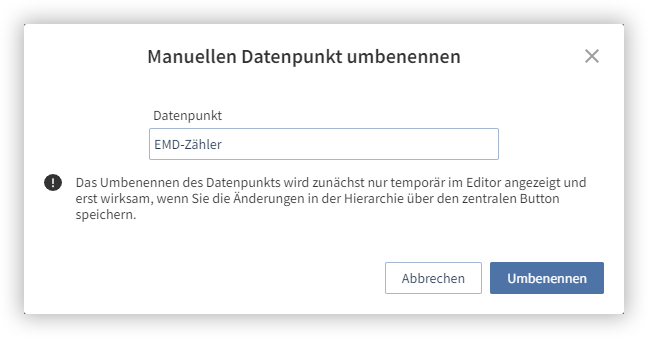
- Wählen Sie den Aktionspunkt Umbenennen aus.
- Es öffnet sich ein Dialog, geben Sie hier den neuen Namen des manuellen Datenpunktes ein.
- Bestätigen Sie den neuen Namen des manuellen Datenpunkten, indem Sie auf die Schaltfläche Umbenennen klicken.