
| Sv translation | ||||||||||||||||||
|---|---|---|---|---|---|---|---|---|---|---|---|---|---|---|---|---|---|---|
| ||||||||||||||||||
| Anker | oben | oben |
| Info | ||
|---|---|---|
| ||
Bitte beachten Sie, dass Ihr Projekt nicht auf einem Netzlaufwerk abliegt! Speichern Sie Ihr Projekt auf Ihrem lokalen PC mit der GridVis-Installation. |
| scroll-viewport | true |
|---|---|
| scroll-pdf | true |
| scroll-office | true |
| scroll-chm | true |
| scroll-docbook | true |
| scroll-eclipsehelp | true |
| scroll-epub | true |
| scroll-html | true |
| floating | left |
|---|
| icon | linchpin-teaser-icon-play-circle |
|---|---|
| variant | icon |
| width | 150px |
| align | center |
| title | TUTORIAL |
| type | 6 |
| newTab | true |
| url | https://youtu.be/45vPG6B16Xw |
| height | 150px |
| Scroll Only | ||||||||||||||||
|---|---|---|---|---|---|---|---|---|---|---|---|---|---|---|---|---|
| ||||||||||||||||

| Info | ||
|---|---|---|
| ||
Bitte beachten Sie: |
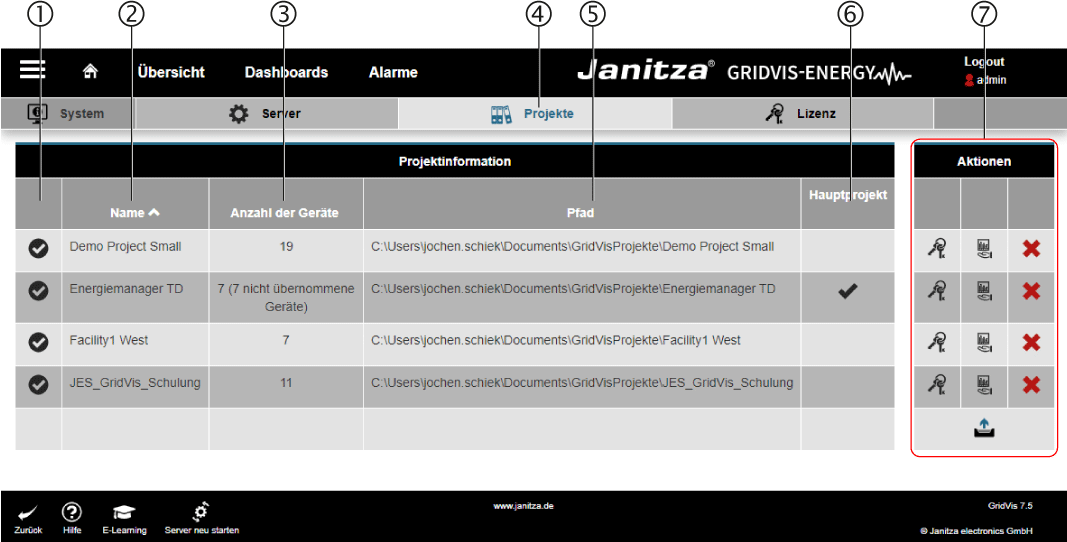
Menü -> Einstellungen -> System -> Projekte
Zustände:  Bereit und
  fehlgeschlagen.
Zeigt den Projektnamen.
 Hinweis:
Den Projektnamen vergeben Sie mit der GridVis Desktop.
Zeigt die Anzahl der Geräte des Projektes.
Geräte, die nicht von der GridVis Web verwaltet werden, sind ebenfalls aufgeführt.

Die aktive Schaltfläche wird blau angezeigt.
Ablagepfad (Windows-Ordner) des Projektverzeichnisses.
Ein Haken kennzeichnet, welches Projekt als Hauptprojekt festgelegt ist.
Hinweis:
Das Hauptprojekt beinhaltet die Benutzerdatenbank sowie die Dashboards und Templates.
Das Hauptprojekt legen Sie im Dialogfeld Kopie von .Server v1.0 fest.
Projekt-Aktionen

Über die Schaltfläche gelangen Sie in das Dialogfeld Kopie von Lizenz.
Hier erhalten Sie alle Informationen zu Ihrem Projekt und der mit dem Projekt verknüpften GridVis® Edition.

Auf alle Messgeräte anwenden
Wird diese Schaltfläche betätigt, werden alle Geräte des Projekts direkt von der GridVis® Web verwaltet.
Hinweis:
Automatisierungen, wie z. B. die automatische Auslesung oder das automatische Zeit setzen werden nur ausgeführt, wenn der Dienst das betroffene Gerät verwaltet.


Betätigen Sie dies Schaltfläche, um ein mit der GridVis-Desktop erstelltes Projekt einzubinden.
- Geben Sie im Eingabefeld den Ablagepfad Ihres
Projektverzeichnisses/Projekts ein. - Bestätigen Sie mit Klick auf die Schaltfläche
Laden die Aktion.
| Anzeige untergeordneter Seiten | ||||||
|---|---|---|---|---|---|---|
|
| Sv translation | ||||||||||||||||||
|---|---|---|---|---|---|---|---|---|---|---|---|---|---|---|---|---|---|---|
| ||||||||||||||||||
| Anker | above | above |
| Info | ||
|---|---|---|
| ||
Please ensure that your project is not stored on a network drive! Save your project on your local PC with the GridVis installation. |
| scroll-viewport | true |
|---|---|
| scroll-pdf | true |
| scroll-office | true |
| scroll-chm | true |
| scroll-docbook | true |
| scroll-eclipsehelp | true |
| scroll-epub | true |
| scroll-html | true |
| floating | left |
|---|
| icon | linchpin-teaser-icon-play-circle |
|---|---|
| variant | icon |
| width | 150px |
| align | center |
| title | TUTORIAL |
| type | 6 |
| newTab | true |
| url | https://youtu.be/ucH1ZlhnjCY |
| height | 150px |
| Scroll Only | ||||||||||||||||
|---|---|---|---|---|---|---|---|---|---|---|---|---|---|---|---|---|
| ||||||||||||||||
| Info | ||
|---|---|---|
| ||
Please note: |
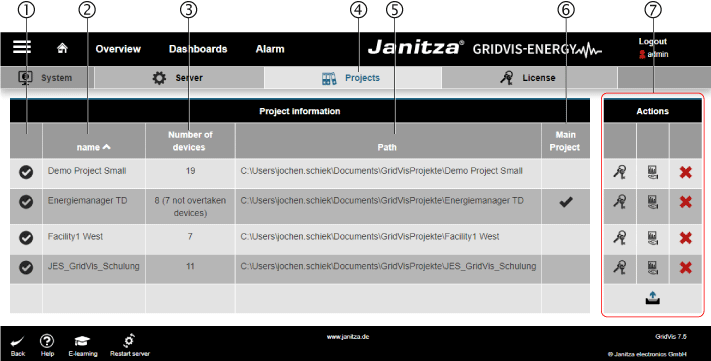
Menu -> Settings -> System -> Projects
States: Ready and Failed.
Shows the project name.
Note:
Use GridVis Desktop to assign the project name.
Shows the number of devices in the project.
Devices that are not managed by GridVis Web are also listed.
The button is displayed in blue when active.
Storage path (Windows folder) of the project directory.
A checkmark indicates which project is set as the main project.
Note:
The main project includes the user database as well as the dashboards and templates.
The main project must be specified in the Kopie von .Server v1.0 dialog box.
Project actions
The License button
Here you will find all the information about your project and the GridVis® edition linked to the project.
Apply to all measurement devices
When this button is clicked, all devices in the project are then managed directly by GridVis® Web.
Note:
Automations, such as Automatic readout or Automatic time setting are only executed if the service manages the device concerned.
Use this button to integrate a project created with GridVis Desktop.
- Enter the storage path of your
project directory/project in the input field. - Confirm by clicking the
Load button.
| Anzeige untergeordneter Seiten | ||||||
|---|---|---|---|---|---|---|
|
| Sv translation | ||||||||||||||||||||||||||||||||||||||||||||||||||||||||||||||||||||||||||||||||||||||||||||||||||||||||||||||||||||
|---|---|---|---|---|---|---|---|---|---|---|---|---|---|---|---|---|---|---|---|---|---|---|---|---|---|---|---|---|---|---|---|---|---|---|---|---|---|---|---|---|---|---|---|---|---|---|---|---|---|---|---|---|---|---|---|---|---|---|---|---|---|---|---|---|---|---|---|---|---|---|---|---|---|---|---|---|---|---|---|---|---|---|---|---|---|---|---|---|---|---|---|---|---|---|---|---|---|---|---|---|---|---|---|---|---|---|---|---|---|---|---|---|---|---|---|---|
| ||||||||||||||||||||||||||||||||||||||||||||||||||||||||||||||||||||||||||||||||||||||||||||||||||||||||||||||||||||
Anker | arriba | arriba |
|
| Info | ||
|---|---|---|
| ||
¡Por favor, preste atención a que su proyecto no se encuentre en una unidad de red! Guarde su proyecto en su PC local con la instalación de GridVis. |
| scroll-viewport | true |
|---|---|
| scroll-pdf | true |
| scroll-office | true |
| scroll-chm | true |
| scroll-docbook | true |
| scroll-eclipsehelp | true |
| scroll-epub | true |
| scroll-html | true |
| floating | left |
|---|
| icon | linchpin-teaser-icon-play-circle |
|---|---|
| variant | icon |
| width | 150px |
| align | center |
| title | TUTORIAL |
| type | 6 |
| newTab | true |
| url | https://youtu.be/ucH1ZlhnjCY |
| height | 150px |
| Scroll Only | ||||||||||||||||
|---|---|---|---|---|---|---|---|---|---|---|---|---|---|---|---|---|
| ||||||||||||||||
| Info | ||
|---|---|---|
| ||
Obsérvese: |
Menú -> Settings (Ajustes) -> System (Sistema) -> Projects (Proyectos)
Estados: Listo y fallido.
Muestra el nombre del proyecto.
Aviso:
Usted asigna el nombre del proyecto con GridVis Desktop.
Muestra el número de dispositivos del proyecto.
También se muestran los dispositivos que no son administrados por GridVis Web.
El botón activo aparece en azul.
Ruta de almacenamiento (carpeta de Windows) del directorio del proyecto.
Una marca de verificación indica qué proyecto está definido como proyecto principal.
Aviso:
El proyecto principal contiene la base de datos del usuario, así como los paneles y las plantillas.
Podrá definir el proyecto principal en el cuadro de diálogo Kopie von .Server v1.0 (Servidor).
Actions (Acciones del proyecto)
Aquí obtendrá todas las informaciones acerca de su proyecto y de la edición de GridVis® vinculada con el proyecto.
Aplicar a todos los dispositivos de medición
Si se hace clic en este botón, todos los dispositivos del proyectos serán administrados directamente por GridVis® Web.
Aviso:
Las automatizaciones como, por ejemplo, la lectura automática o el ajuste de hora automático solamente se ejecutan, si el servicio administra el dispositivo en cuestión.
Haga clic en este botón para integrar un proyecto creado con GridVis Desktop.
directorio de proyecto/proyecto.
Cargar.
| Sv translation | ||||||||||||||||||||||||||||||||||||||||||||||||||||||||||||||||||||||||||||||||||||||||||||||||||||||||||||||||||||
|---|---|---|---|---|---|---|---|---|---|---|---|---|---|---|---|---|---|---|---|---|---|---|---|---|---|---|---|---|---|---|---|---|---|---|---|---|---|---|---|---|---|---|---|---|---|---|---|---|---|---|---|---|---|---|---|---|---|---|---|---|---|---|---|---|---|---|---|---|---|---|---|---|---|---|---|---|---|---|---|---|---|---|---|---|---|---|---|---|---|---|---|---|---|---|---|---|---|---|---|---|---|---|---|---|---|---|---|---|---|---|---|---|---|---|---|---|
| ||||||||||||||||||||||||||||||||||||||||||||||||||||||||||||||||||||||||||||||||||||||||||||||||||||||||||||||||||||
Anker | inizio | inizio |
|
| Info | ||
|---|---|---|
| ||
Si noti che il progetto non si trova su un’unità di rete! Salvare il progetto sul PC locale con l’installazione di GridVis. |
| scroll-viewport | true |
|---|---|
| scroll-pdf | true |
| scroll-office | true |
| scroll-chm | true |
| scroll-docbook | true |
| scroll-eclipsehelp | true |
| scroll-epub | true |
| scroll-html | true |
| floating | left |
|---|
| icon | linchpin-teaser-icon-play-circle |
|---|---|
| variant | icon |
| width | 150px |
| align | center |
| title | TUTORIAL |
| type | 6 |
| newTab | true |
| url | https://youtu.be/ucH1ZlhnjCY |
| height | 150px |
| Scroll Only | ||||||||||||||||
|---|---|---|---|---|---|---|---|---|---|---|---|---|---|---|---|---|
| ||||||||||||||||
| Info | ||
|---|---|---|
| ||
Nota bene: |
Menu -> Impostazioni -> Sistema -> Progetti
Stati: Pronto e non riuscito.
Mostra il nome del progetto.
Nota:
Il nome del progetto viene assegnato con GridVis Desktop.
Mostra il numero di dispositivi nel progetto.
Sono elencati anche i dispositivi non gestiti da GridVis Web.
Il pulsante attivo viene visualizzato in blu.
Percorso di archiviazione (cartella di Windows) della directory del progetto.
Un segno di spunta indica quale progetto è impostato come progetto principale.
Nota:
Il progetto principale comprende il database degli utenti, le dashboard e i template.
Viene creato il progetto principale nella finestra di dialogo Kopie von .Server v1.0.
Azioni del progetto
Qui vengono ricevute tutte le informazioni sul progetto e sull’edizione di GridVis® collegata al progetto.
Applica a tutti gli strumenti di misura
Nota:
Automazioni come ad es. la lettura automatica o impostazione automatica dell’ora vengono eseguite solo se il servizio gestisce il dispositivo interessato.
Premere questo pulsante per includere un progetto creato con GridVis-Desktop.
nel campo di immissione.
Carica per confermare l’azione.